
Appearance
Segmentation Cleanup Module Guide
The Segmentation Cleanup module corrects and measures a labeled segmentation stack in one integrated editor: paint fixes by hand, run automated cleanup over the whole volume, quantify the result per class, and save it as a new file. All edits run against a server-side working copy — the original file is never modified.
For a conceptual overview, see Segmentation Cleanup Module.
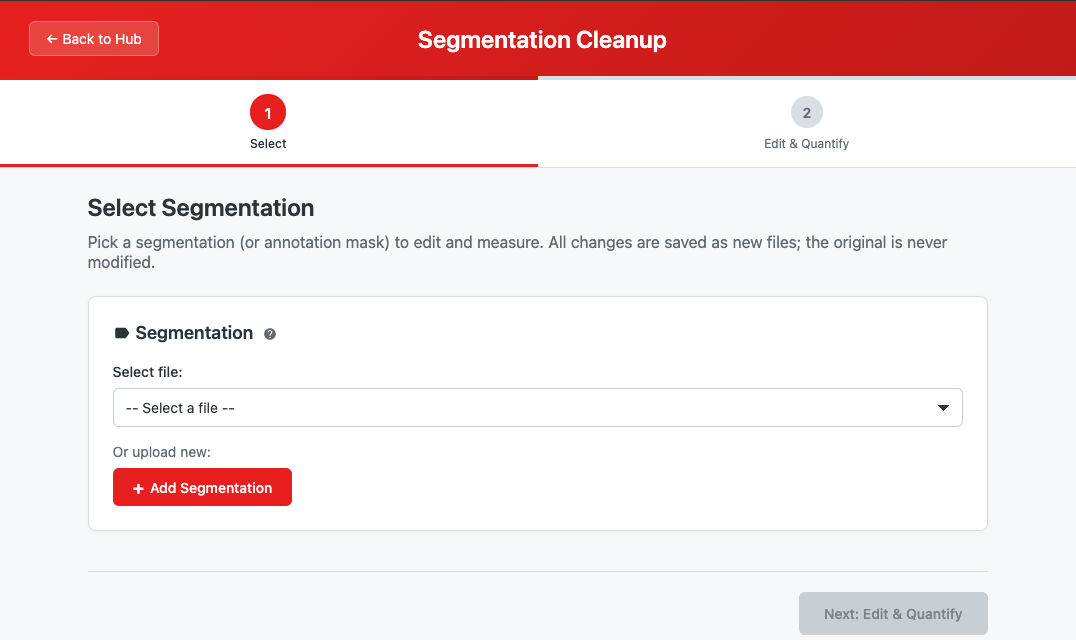 Segmentation cleanup module landing page showing step navigation and file selector
Quick Start
- Launch module — Click "Segmentation Cleanup" from the workspace hub
- Select — Choose a segmentation result or annotation mask
- Edit — Paint corrections and/or configure automated cleanup, then Apply
- Quantify — Review per-class metrics; export a CSV report if needed
- Save as New File — The cleaned stack becomes a tracked output usable by Mesh Generation and Stitching
Step-by-Step Guide
Step 1: Selecting a Segmentation
| Source | Description |
|---|---|
| Segmentation Results | Label maps from U-Net inference, and prior cleanup outputs |
| Annotation Masks | Annotation uploads and completed annotations from the Annotation Tool |
| Test Data | The built-in annotation test stack |
Requirements: multi-page TIFF with integer class labels (0 = background) and at least one non-zero class.
Once selected, each detected class is shown as a chip with its color, value, and approximate voxel count. Two things worth checking here:
- Voxel size — without one, quantification reports voxel counts only. Set it via the File Browser's file info dialog to get physical volume and surface area.
- Image underlay — when the segmentation's lineage points to a grayscale origin image, it is resolved automatically and used as the underlay in the editor (optional; editing works without it).
Step 2: Edit & Quantify
Painting, automated cleanup, and quantification live side by side in one step.
Painting Corrections
| Tool | Action |
|---|---|
| Brush | Paint with the active class |
| Eraser | Erase to background (0) |
| Fill | Flood-fill the clicked connected region with the active class |
Brush size: 1–100 px (slider). Left-drag paints; right-drag or Space+drag pans; mouse wheel zooms. Undo/redo is tracked per slice, so stepping between slices keeps each slice's own history. Labels are drawn as a colored overlay on the grayscale underlay. See Painting Corrections.
Automated Cleanup
Configure any combination, then Apply cleanup — it runs on the full stack (including unsaved paint edits) and the editor reloads from the result:
| Operation | Options |
|---|---|
| Merge or remove classes | Per class: keep / remove (to background) / merge into another class |
| Fill holes | off / 2D (per slice) / 3D |
| Min size | Remove 3D connected components below N voxels (0 = off) |
| Smooth | Majority-filter boundary smoothing, radius 0–5 (0 = off) |
Operations always run in a fixed order (merge → fill → remove small → smooth), and fill/smoothing only claim background voxels — they never overwrite another class's foreground. See Automated Cleanup.
Quantification and Reports
The table below the viewer reports per class: voxels, physical volume (when a voxel size is set), objects (3D connected components), mean/largest component size, and surface area (marching cubes).
When you paint, the metrics go stale — a "labels edited" badge appears with an Update button. Applying cleanup recomputes them automatically.
Create report (CSV) writes two tracked files: report.csv (per-class summary) and objects.csv (one row per connected component). See Quantification and Reports.
Saving the Result
Save as New File writes the current labels (painted edits + applied cleanup) to a new TIFF (default name cleaned), tagged as a segmentation result so Mesh Generation and Stitching accept it directly. Saving does not end the session — you can keep editing and save again. See Saving the Result.
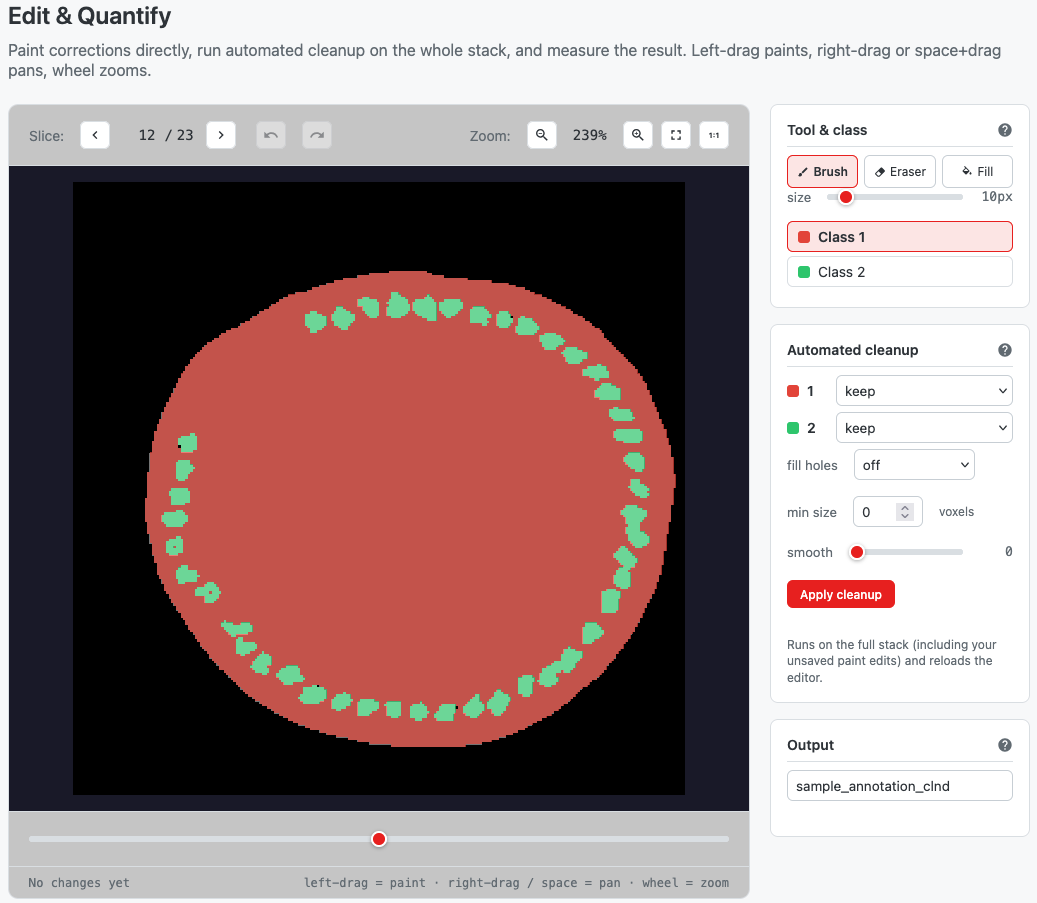 Segmentation edit step wit tools and automated cleanup sections
Output Files
| Output | Description |
|---|---|
| Cleaned segmentation | New tracked TIFF, tagged as a segmentation result |
report.csv | Per-class quantification summary |
objects.csv | One row per individual connected component |
Working copies are cleaned up when you leave the module; saved files and reports remain.
Troubleshooting
| Issue | Possible Cause | Solution |
|---|---|---|
| No physical volume / surface area columns | No voxel size on the input | Set it via the File Browser's file info dialog, then reselect |
| No grayscale underlay in the editor | Lineage doesn't point to a grayscale origin | Editing still works — the label stack backs the view |
| Metrics don't match what I see | Labels edited since last compute | Press Update next to the "labels edited" badge |
| Apply cleanup does nothing | No operation configured | At least one operation must be set before applying |
| Small structures disappeared after cleanup | Min size set too high | Lower the min-size threshold and re-run from the last save |
| Undo doesn't undo an edit on another slice | Per-slice history | Navigate to the slice where the edit happened, then undo |