
Appearance
Image Viewer Module Guide
The Image Viewer module lets you browse and inspect TIFF image stacks with two viewing modes: a detailed gallery view for examining individual slices, and a thumbnail grid for quick navigation through the entire stack. You can also compare two to four stacks side by side with a shared slice slider, zoom, and pan.
For a conceptual overview, see Image Viewer.
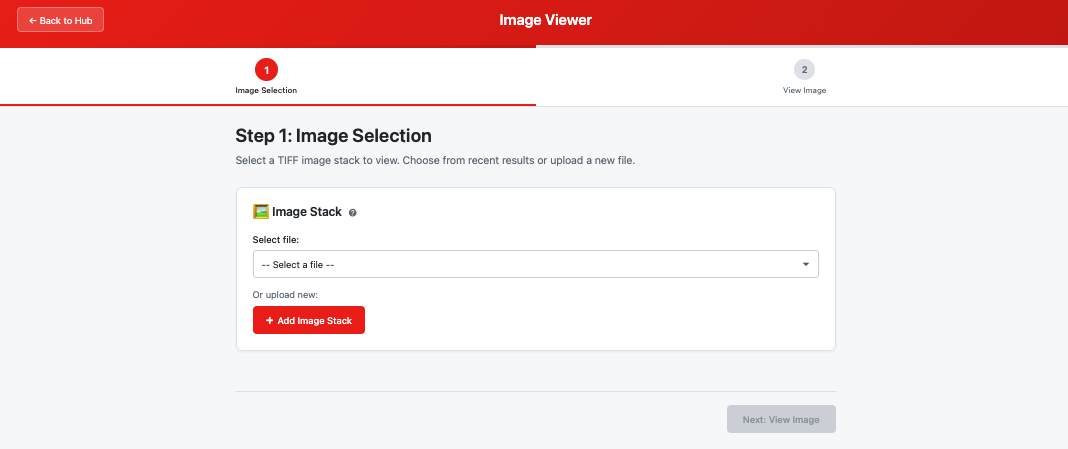 The Image Viewer module landing page showing step navigation and file selector
Quick Start
- Launch module — Click "Image Viewer" from the workspace hub
- Select a file — Choose a TIFF stack from your workspace or module results
- Optionally compare — Add up to four validated stacks to the comparison list
- Browse slices — Use the slider, Previous/Next buttons, or arrow keys to navigate
- Switch modes — Toggle between Gallery and Thumbnail views
Step-by-Step Guide
Step 1: Image Selection
Select the TIFF stack (or stacks) you want to view.
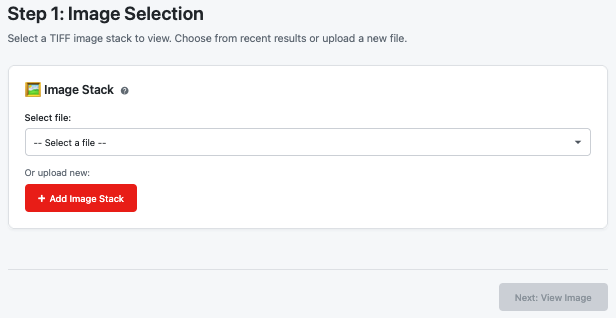 Step 1 file selection with validation status display
Input Options
| Source | Description | When to Use |
|---|---|---|
| Workspace Files | TIFF files uploaded to your workspace | Viewing raw data or uploaded images |
| Segmentation Results | Output from the Segmentation module | Inspecting inference results |
| DL Denoising Results | Output from Deep Learning Denoising | Reviewing denoised images |
| Filter Denoising Results | Output from Filter Denoising | Reviewing filter-denoised images |
Automatic File Loading
If you navigate to the Image Viewer from another module (e.g., after running inference), the output file is automatically selected and you'll proceed directly to Step 2.
File Requirements
- Format: Multi-page TIFF (.tif or .tiff)
- Bit Depth: 8-bit or 16-bit grayscale
- Channels: Single channel (grayscale)
Validation Display
After selecting a file, the validation display shows:
| Information | Example |
|---|---|
| Dimensions | 512 x 512 pixels |
| Slice Count | 256 slices |
| Data Type | 8-bit unsigned |
Note: The "Next" button is disabled until a valid file is selected and validated.
Comparing Stacks
To compare stacks side by side, select a validated file and click Add selected to comparison. Repeat to build a list of two to four stacks — each entry shows its name, dimensions, and slice count, with an × to remove it.
- With two or more stacks listed, the Next button reads "Next: Compare N Stacks" and opens the comparison view
- Leave the list empty (or with one stack) to view a single stack normally
For more details, see Image Stack Selection.
Click "Next: View Image" to proceed to Step 2.
Step 2: View Image
Browse and inspect your image stack using the viewer controls.
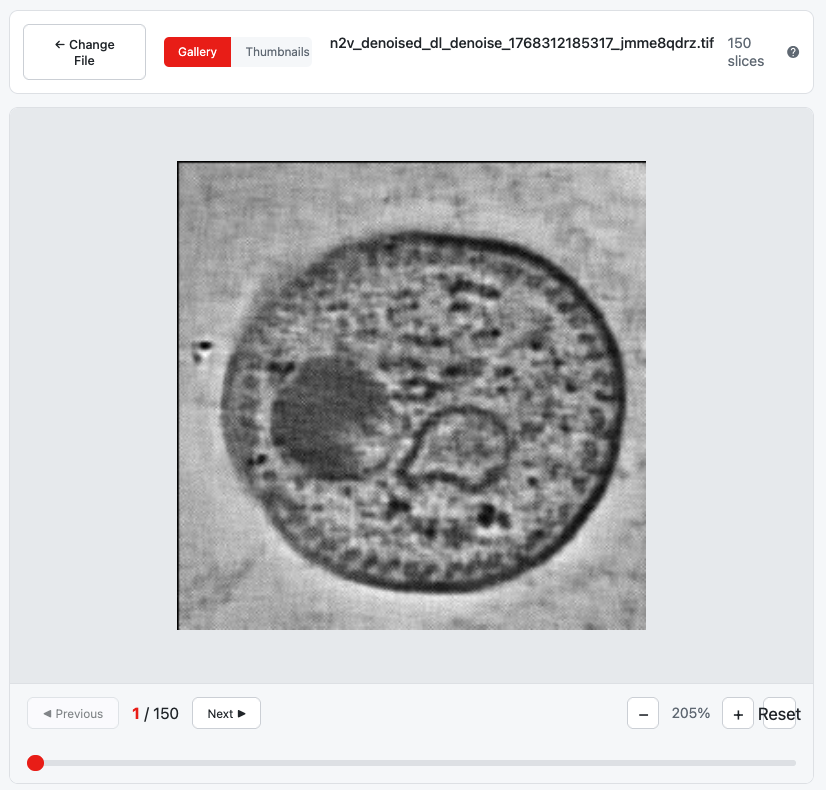 Full viewer interface with toolbar, viewing area, and controls
Toolbar
The toolbar at the top provides mode switching and file information:
| Element | Description |
|---|---|
| ← Change File | Return to Step 1 to select a different file |
| Gallery / Thumbnails | Toggle between viewing modes |
| Filename | Currently loaded file name |
| Slice Count | Total number of slices (e.g., "256 slices") |
Gallery Mode (Default)
Gallery mode displays a single slice at full resolution with zoom and pan capabilities.
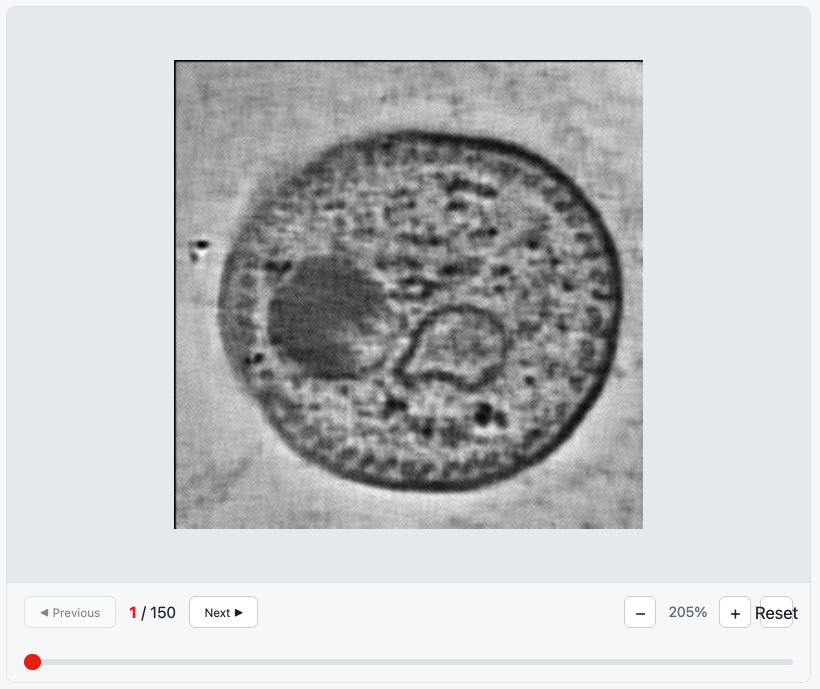 Gallery mode with zoom controls and slice navigation slider
Slice Navigation
| Control | Action |
|---|---|
| ◀ Previous / Next ▶ | Step through slices |
| Left/Right arrow keys | Step through slices |
| Numeric slice field | Jump to a specific slice (1-based) |
| Slice Indicator | Shows current position (e.g., "25 / 100") |
| Slider | Drag to jump to any slice |
Zoom Controls
| Control | Action |
|---|---|
| Zoom in / out buttons | Step zoom in 1.25× increments |
| Mouse Wheel | Zoom toward the cursor |
| Fit to view | Reset the zoom and re-center |
| Actual size | Set the served slice image to 1:1 |
| Zoom range | 10% – 1000% |
Panning
- Drag with the left or middle mouse button, or hold Space and drag, to move around the image
Tip: Use the mouse wheel to quickly zoom in on areas of interest, then drag to pan around the image.
Thumbnail Mode
Thumbnail mode displays all slices as a scrollable grid of previews.
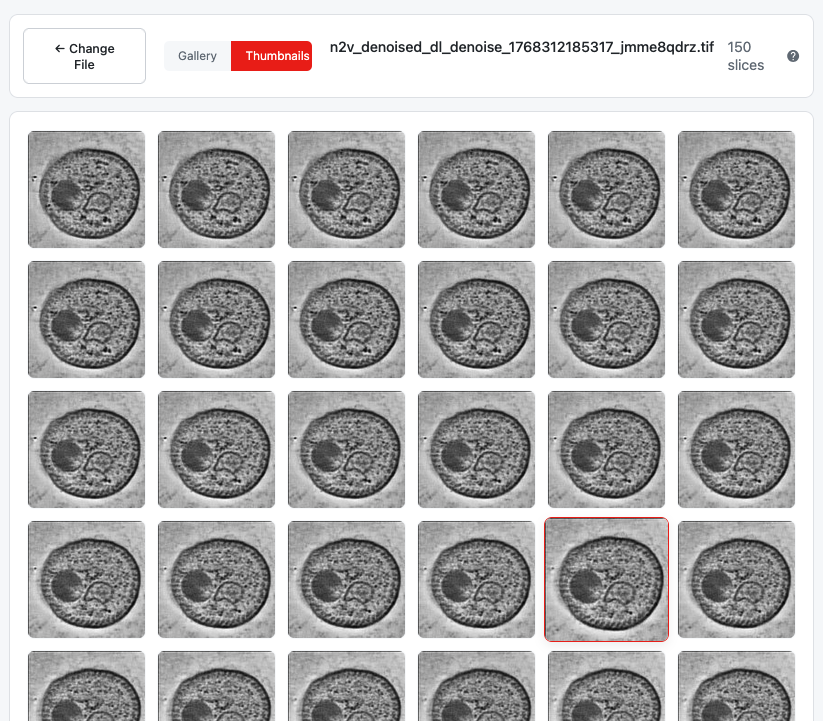 Thumbnail mode with scrollable grid of slice previews
Features:
- Grid Layout — Responsive grid that adjusts to panel width
- Lazy Loading — Thumbnails load as you scroll (better performance for large stacks)
- Slice Numbers — Each thumbnail shows its slice number
- Click to View — Click any thumbnail to open that slice in Gallery mode
Tip: Use Thumbnail mode to get an overview of your entire stack, then click a slice to examine it in detail in Gallery mode.
Comparison Mode
When you added two or more stacks in Step 1, the viewer shows them together:
- Gallery — one pane per stack, all driven by one shared slice slider, zoom, and pan, so the same z position and view stay aligned across stacks. A shorter stack clamps to its last slice and shows an "end of stack" badge.
- Thumbnails — a table with one column per stack and one row per slice index, so the same depth lines up across stacks. Click a cell to open that slice in the comparison gallery.
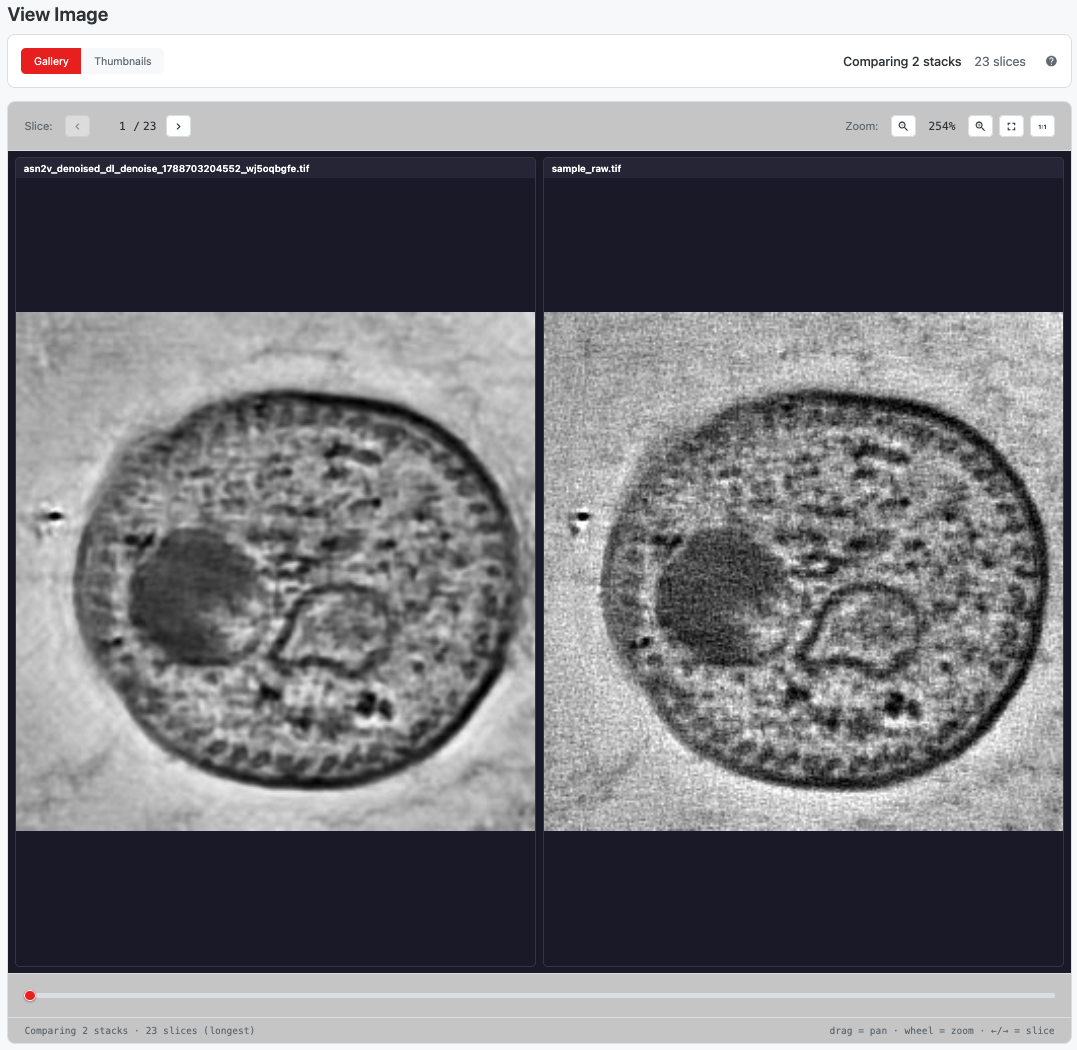 Comparison mode with twos stacks displayed
The toolbar shows "Comparing N stacks" instead of a single filename.
For more details, see Viewer Controls.
Mouse and Keyboard Controls
| Input | Action | Mode |
|---|---|---|
| Mouse Wheel | Zoom toward cursor | Gallery |
| Left/Middle Drag or Space + Drag | Pan | Gallery |
| Left/Right Arrow Keys | Previous/next slice | Gallery |
| Click Thumbnail | Open slice in Gallery mode | Thumbnail |
| Drag Slider | Jump to slice | Gallery |
Troubleshooting
| Issue | Cause | Solution |
|---|---|---|
| "Next" button disabled | No file selected or validation failed | Select a valid TIFF file |
| Slice not loading | Network issue or file error | Wait for loading or try refreshing |
| Can't pan the image | Zoom level at 100% or below | Zoom in first, then pan |
| Thumbnails loading slowly | Large stack with many slices | Normal behavior; thumbnails load as you scroll |
| File not appearing in list | Wrong file type or location | Ensure file is a TIFF in your workspace |
Related Help Articles
Module Overview:
- Image Viewer — Module introduction and features
Step-by-Step:
- Image Stack Selection — File selection and validation
- Viewer Controls — Gallery, thumbnail, and navigation controls