
Appearance
Filter-Based Denoising Module Guide
The Filter-Based Denoising module removes noise from TIFF image stacks using traditional mathematical filtering methods. It offers two approaches: Gaussian filtering for quick smoothing, and Non-Local Means (NLM) for edge-preserving denoising. No training is required—filters are applied directly to your images.
For a conceptual overview, see Filter-Based Denoising.
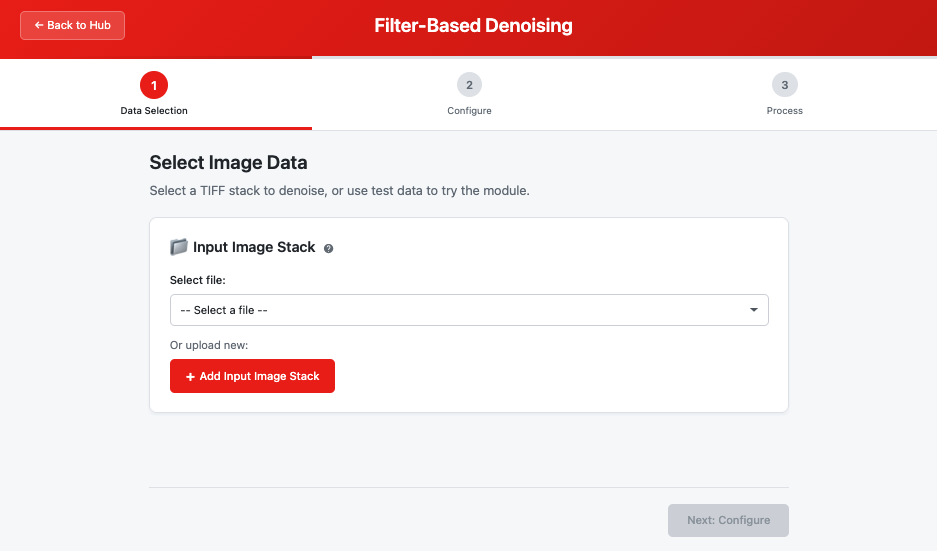 The Filter Denoising module landing page showing step navigation and file selector
Quick Start
- Launch module — Click "Filter-Based Denoising" from the workspace hub
- Select an image — Choose a TIFF stack from your workspace or use test data
- Choose a method — Select Gaussian (fast) or Non-Local Means (better quality)
- Adjust parameters — Configure filter strength and window sizes
- Process — Click "Start Denoising" and wait for completion
- View results — Open the denoised image in the Image Viewer
Step-by-Step Guide
Step 1: Data Selection
Select the image you want to denoise.
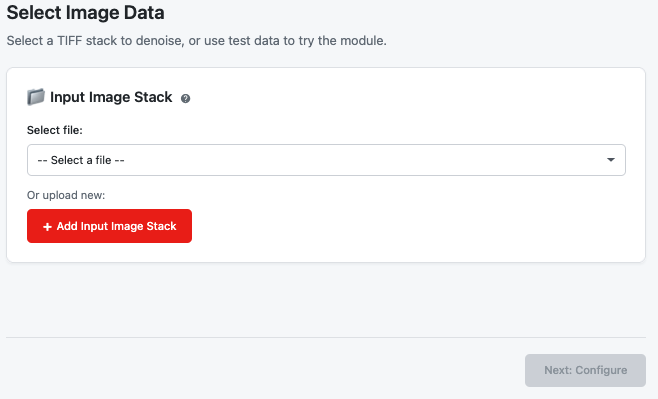 Step 1 data selection with file chooser and test data option
Input Options
| Source | Description | When to Use |
|---|---|---|
| Workspace Files | TIFF stacks uploaded to your workspace | Your own image data |
| Test Data | Built-in noisy test image | Learning the module or testing settings |
File Requirements
- Format: Multi-page TIFF (.tif or .tiff)
- Bit Depth: 8-bit or 16-bit grayscale
- Channels: Single channel (grayscale)
Note: Single images are automatically treated as a 1-slice stack.
For more details, see Input Requirements.
Click "Next: Configure" to proceed to Step 2.
Step 2: Configure
Choose your denoising method and adjust its parameters.
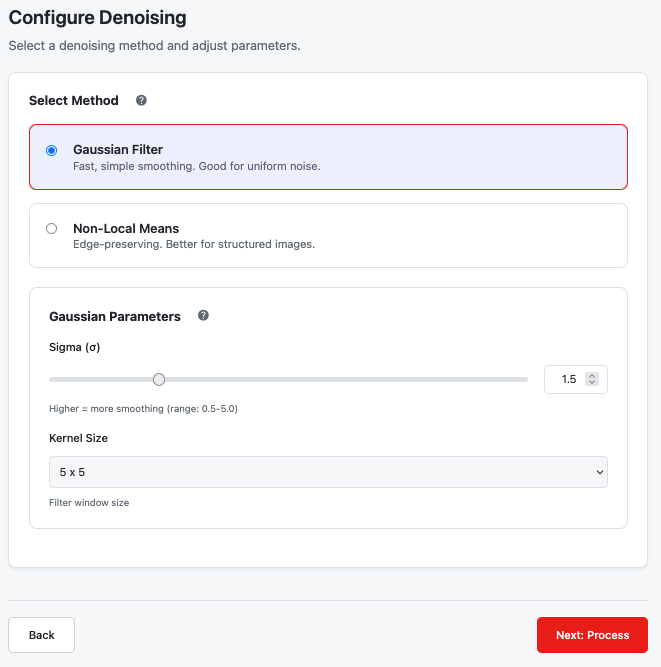 Step 2 configuration with method selection and parameter controls
Method Selection
| Method | Speed | Edge Preservation | Best For |
|---|---|---|---|
| Gaussian Filter | Very fast | Moderate (may blur edges) | Quick denoising, uniform noise |
| Non-Local Means | Slower | Excellent | Fine details, structured images |
For a detailed comparison, see Denoising Methods.
Gaussian Filter Parameters
The Gaussian filter smooths images by averaging neighboring pixels with weights that decrease with distance.
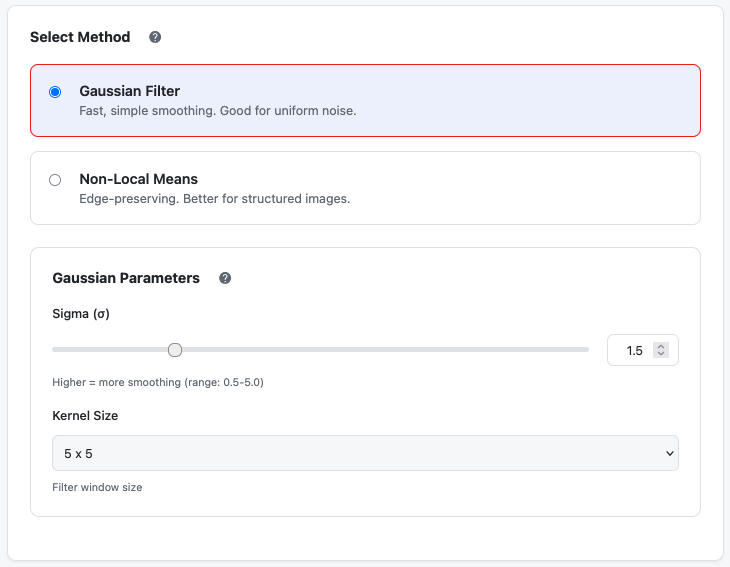 Gaussian filter controls for sigma and kernel size
| Parameter | Range | Default | Description |
|---|---|---|---|
| Sigma (σ) | 0.5 – 5.0 | 1.5 | Controls blur strength; higher = more smoothing |
| Kernel Size | 3, 5, 7, 9, 11 | 5 | Size of the filter window in pixels |
Sigma Guidelines:
| Value | Effect |
|---|---|
| 0.5 – 1.0 | Subtle smoothing, preserves most detail |
| 1.5 – 2.5 | Balanced noise reduction (recommended starting point) |
| 3.0 – 5.0 | Strong smoothing, may blur edges |
Kernel Size Guidelines:
| Size | Effect |
|---|---|
| 3×3 | Minimal smoothing, fastest |
| 5×5 | Good balance (recommended) |
| 7×7 – 11×11 | Stronger smoothing for high noise |
For more details, see Gaussian Filter.
Non-Local Means Parameters
NLM finds similar patches throughout the image and averages them, preserving edges while reducing noise.
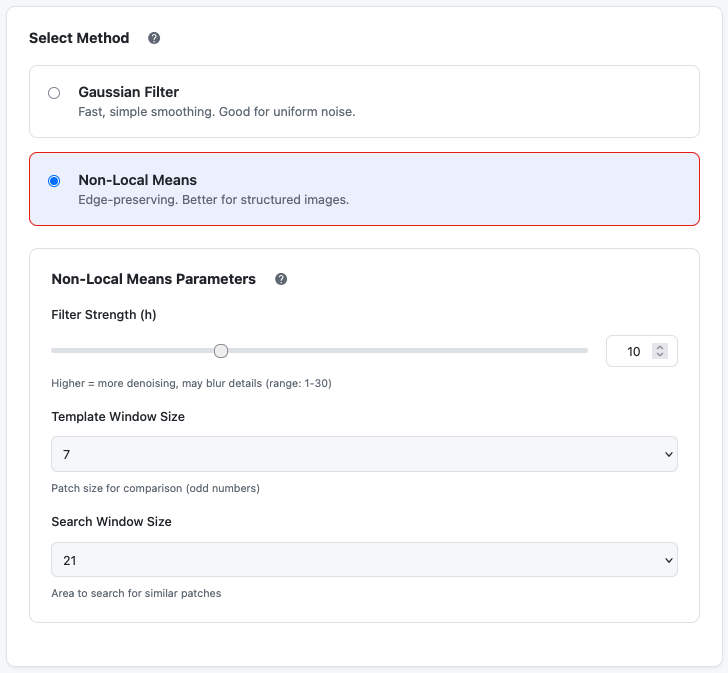 Non-Local Means controls for filter strength and window sizes
| Parameter | Range | Default | Description |
|---|---|---|---|
| Filter Strength (h) | 1 – 30 | 10 | Denoising intensity; higher = more noise removal |
| Template Window | 3, 5, 7, 9, 11 | 7 | Patch size for comparing similarity |
| Search Window | 11, 15, 21, 31, 41 | 21 | Area to search for similar patches |
Filter Strength Guidelines:
| Value | Effect |
|---|---|
| 1 – 5 | Subtle denoising, preserves all details |
| 10 – 15 | Good balance for moderate noise (recommended) |
| 20 – 30 | Aggressive denoising for very noisy images |
Window Size Guidelines:
| Setting | Speed | Quality |
|---|---|---|
| Small windows (3, 11) | Faster | Less robust matching |
| Default (7, 21) | Balanced | Good for most images |
| Large windows (11, 41) | Slower | More robust for high noise |
Tip: Start with default values and adjust based on results. NLM automatically adapts to your image's noise level.
For more details, see Non-Local Means.
Click "Next: Process" to proceed to Step 3.
Step 3: Process
Review your configuration and run the denoising process.
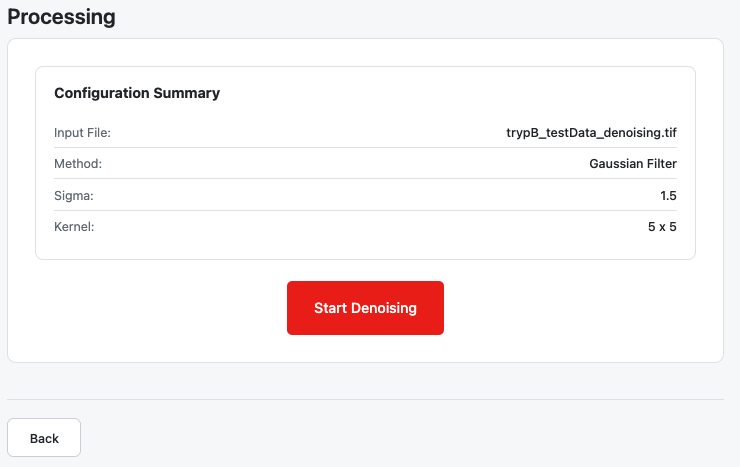 Step 3 with configuration summary and Start Denoising button
Configuration Summary
Before processing, you'll see a summary of your settings:
- Input File: Name of the selected image
- Method: Gaussian or Non-Local Means
- Parameters: All configured values
Processing
- Click "Start Denoising" to begin
- A spinner indicates processing is in progress
- Wait for completion (time depends on image size and method)
Processing Time Estimates:
| Method | Small Stack (50 slices) | Large Stack (500 slices) |
|---|---|---|
| Gaussian | A few seconds | Under a minute |
| NLM | 1-2 minutes | 5-15 minutes |
Note: NLM is significantly slower than Gaussian but produces better results for images with important edge details.
Results
After processing completes, you'll see the results summary.
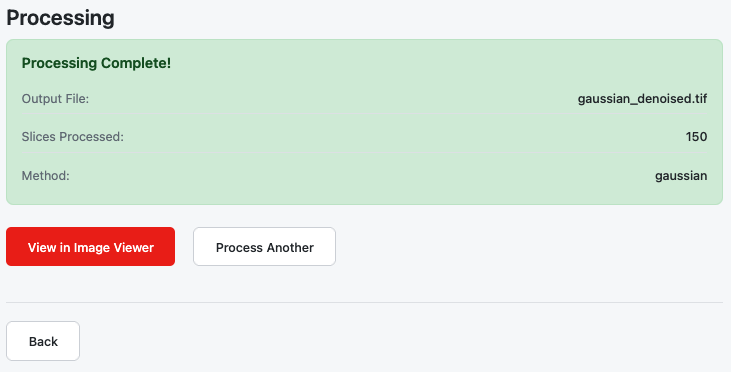 Results section with output details and action buttons
Results Display
| Information | Description |
|---|---|
| Output File | Name of the denoised TIFF |
| Slices Processed | Number of slices in the stack |
| Method | Which denoising method was used |
Actions
| Button | Action |
|---|---|
| View in Image Viewer | Opens the denoised result in the Image Viewer module |
| Process Another | Resets the module to denoise a different image |
Output Files
| File | Description | Location |
|---|---|---|
gaussian_denoised.tif | Gaussian-filtered output | results/denoising/{processingId}/ |
nlm_denoised.tif | NLM-filtered output | results/denoising/{processingId}/ |
The output file:
- Has the same dimensions as the input
- Preserves the original bit depth (8-bit or 16-bit)
- Is automatically added to your workspace for use in other modules
Choosing Between Methods
| Consideration | Gaussian | Non-Local Means |
|---|---|---|
| Speed | Very fast | Slower |
| Edge preservation | May blur edges | Excellent |
| Fine details | May smooth over | Well preserved |
| Noise type | Uniform, random noise | All noise types |
| Best for | Quick preview, large stacks | Final results, important details |
Recommendation: Start with Gaussian for a quick preview. If edges or fine details are important, use NLM for the final result.
Troubleshooting
| Issue | Cause | Solution |
|---|---|---|
| Result still noisy | Parameters too conservative | Increase sigma (Gaussian) or h (NLM) |
| Result too blurry | Parameters too aggressive | Decrease sigma or h; try NLM instead of Gaussian |
| Processing takes too long | Large stack with NLM | Use Gaussian for preview; reduce search window for NLM |
| Edges are blurred | Using Gaussian on detailed image | Switch to Non-Local Means method |
| "File not found" error | File was moved or deleted | Re-upload the file or select a different one |
Related Help Articles
Module Overview:
- Filter-Based Denoising — Module introduction
Input:
- Input Requirements — Supported file formats
Methods:
- Denoising Methods — Comparing Gaussian and NLM
- Gaussian Filter — Gaussian parameters explained
- Non-Local Means — NLM parameters explained
Processing:
- Processing & Results — Running the filter and opening the output