
Appearance
Help & Info Panel Guide
The Help & Info panel provides access to documentation, terminology definitions, and contextual help throughout the workspace. This guide covers how to navigate and find information using the search bar, glossary, and cross-reference links.
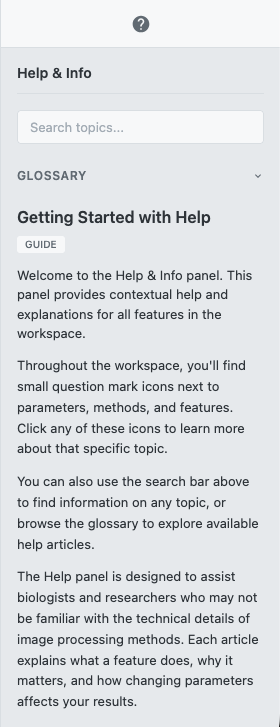 Caption: The Help & Info panel with search bar, glossary, and article display
Quick Start
- Open the panel — Click the help icon (?) in the workspace info section or any inline help icon
- Search for topics — Type in the search bar to find articles by title, tag, or category
- Browse the glossary — Click "Glossary" to expand alphabetical term listings
- Follow cross-references — Click "See Also" links at the bottom of articles to explore related topics
Detailed Guide
Opening the Help Panel
There are two ways to access the Help & Info panel:
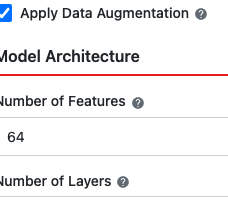 Help icon locations in the sidebar and inline with parameters
Workspace Help Icon
Click the help icon (?) in the Workspace Info section of the sidebar to open the panel. Click again to collapse it.
| State | Panel Width | Content |
|---|---|---|
| Collapsed | 48px | Icon only visible |
| Expanded | 280px | Full panel with search, glossary, and articles |
Context-Sensitive Help Icons
Throughout the workspace, you'll find small help icons next to parameters, settings, and features. These icons have a ? symbol and appear inline with labels.
- Hover over an icon to see a tooltip
- Click the icon to open the help panel directly to that topic's article
Tip: Context-sensitive help icons are the fastest way to get information about a specific parameter or feature while you're working.
Using the Search Bar
The search bar is the primary way to find information in the help system.
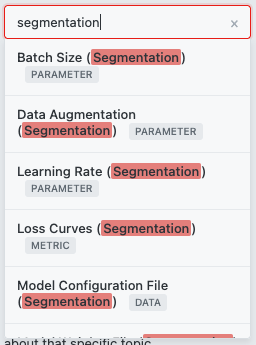 Search bar with results dropdown showing matching articles
How to Search
- Click in the search input field (placeholder: "Search topics...")
- Type at least 2 characters
- Results appear automatically after a brief delay
- Click any result to view the article
What Gets Searched
| Search Target | Example Query | What It Finds |
|---|---|---|
| Article titles | patch size | Articles with "patch" or "size" in the title |
| Tags | training | Articles tagged with "training" |
| Categories | parameter | Articles categorized as parameters |
Note: The search looks at article metadata (titles, tags, categories), not the full text content of articles.
Search Results
- Up to 15 results are displayed
- Results show the article title and category badge
- Your search query is highlighted in the results
- Results are sorted by relevance
Clearing the Search
- Click the × button to clear your search
- Click outside the results dropdown to close it
- Results automatically close when you select an article
Browsing the Glossary
The glossary provides an alphabetical listing of all terms and concepts in the help system.
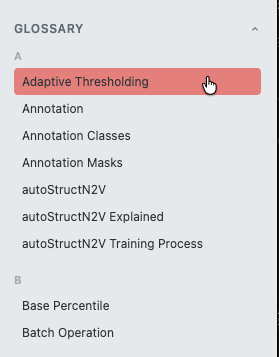 Expanded glossary with alphabetically organized terms
Opening the Glossary
- Locate the "Glossary" header below the search bar
- Click to expand (smooth animation reveals the term list)
- Click again to collapse
Navigating Terms
Terms are organized alphabetically by first letter:
- Letter sections (A, B, C, etc.) group related terms
- Scroll through the list to browse (max height with scrollbar)
- Hover over a term to highlight it
- Click a term to view its associated article
What's in the Glossary
Each glossary entry includes:
| Element | Description |
|---|---|
| Term | The name of the concept (e.g., "Batch Size") |
| Definition | Brief explanation (shown in some entries) |
| Linked Article | Click to read the full article |
Tip: Use the glossary when you encounter an unfamiliar term and want to understand its meaning in the context of image processing.
Reading Articles
When you select a topic from search, glossary, or a help icon, the article displays in the main content area.
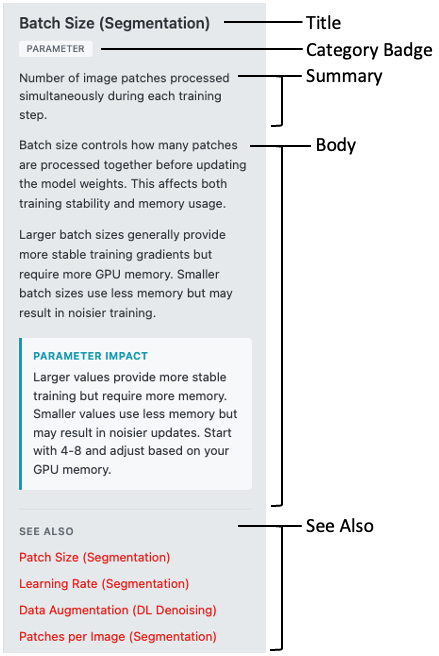 Article view showing title, category badge, summary, and body sections
Article Structure
| Section | Description |
|---|---|
| Title | Article name (may include module for disambiguation) |
| Category Badge | Type of content (guide, parameter, concept, etc.) |
| Summary | Brief overview paragraph |
| Body | Detailed explanation with lists and sections |
| Parameter Impact | (If applicable) How this setting affects results |
| See Also | Links to related articles |
Scrolling Long Articles
The article area is scrollable. If an article is longer than the visible area:
- Use your mouse wheel or trackpad to scroll
- The scroll position resets when you navigate to a new article
Following "See Also" Links
At the bottom of each article, you'll find a "See Also" section with links to related content.
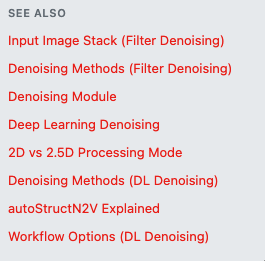 See Also section with curated and auto-generated related links
How See Also Works
Links come from two sources:
- Curated links — Hand-picked related articles (shown first)
- Auto-generated links — Articles sharing common tags (added automatically)
Using See Also for Exploration
- Click any link to navigate directly to that article
- The panel stays open, replacing the current article
- Follow multiple links to explore connected topics
- Use search or glossary to start a new exploration path
Tip: The "See Also" section is great for learning—follow the links to build a deeper understanding of related concepts.
Navigation Workflows
Here are common ways to navigate the help system:
Quick Lookup (Know What You Need)
- Type in the search bar
- Click the matching result
- Read the article
Learning a New Concept (Exploratory)
- Start with glossary or search
- Read the initial article
- Follow "See Also" links to related topics
- Continue exploring until satisfied
In-Context Help (While Working)
- Click the help icon (?) next to a parameter
- Read the article that opens
- Optionally follow "See Also" for more depth
- Collapse the panel to continue working
Panel Behavior
Expanding and Collapsing
- Click the panel toggle or any help icon to expand
- Click the toggle again to collapse
- Panel remembers its state during your session
Mobile Behavior
On smaller screens (< 768px):
- The panel slides in as an overlay from the right
- Covers the main content when open
- Slide out to close
Troubleshooting
| Issue | Cause | Solution |
|---|---|---|
| No search results | Query too short or no matches | Type at least 2 characters; try different keywords |
| Can't find a term | Term may use different wording | Try synonyms or browse the glossary |
| Article not loading | Network issue or missing file | Refresh the page and try again |
| Panel won't open | JavaScript error | Check browser console; refresh the page |
| Help icon not working | Missing data-info-id | Report as a bug—the icon should link to an article |
Related Help Articles
- Getting Started — Overview of the workspace
- Workspace Basics — The hub, sidebar, theme toggle, and help panel
- Getting Started with Help — The in-app help introduction article
- Segmentation — Main segmentation module overview
- DL Denoising — Deep learning denoising overview