Appearance
Deep Learning Denoising Module
Remove noise from microscopy images using self-supervised deep learning. No clean reference images required.
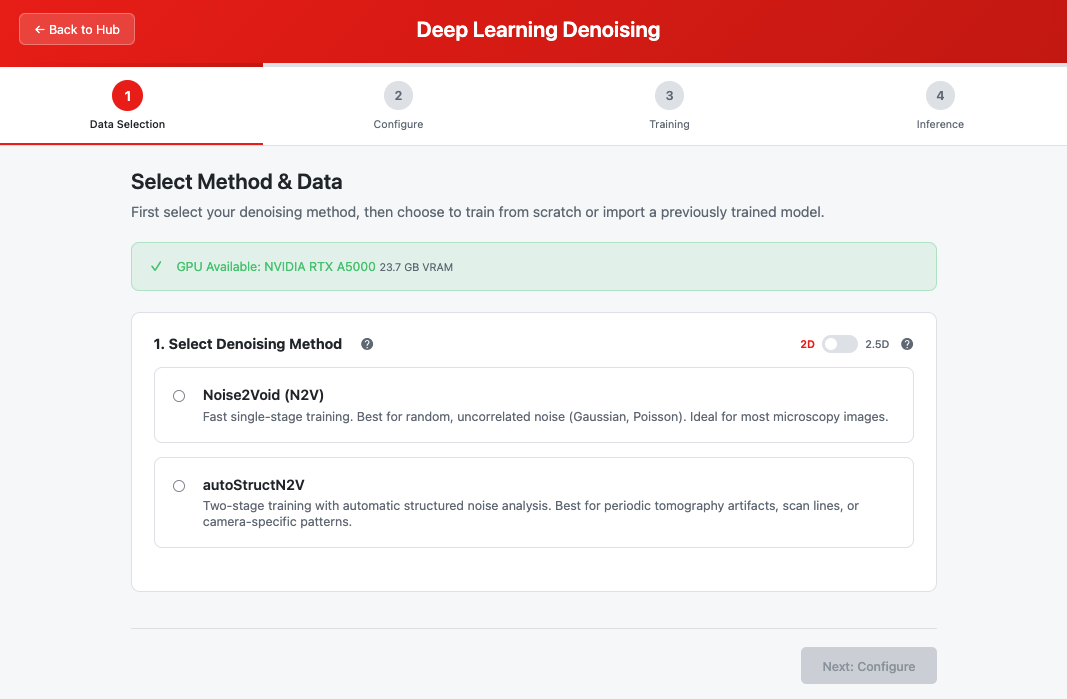 The DL Denoising module landing page showing step navigation, method selection and workflow options
Overview
The Deep Learning Denoising module provides two self-supervised denoising methods:
| Method | What happens | Best For |
|---|---|---|
| autoStructN2V (auto-routed) | Noise is measured on your raw stack in seconds, then the router picks the right training: StructN2V with an automatically discovered mask, or plain N2V if no usable structure is found | Most cases, including structured noise (scan lines, streaks, detector patterns) |
| N2V (Noise2Void) | Plain blind-spot training with a single-pixel mask, no noise measurement | Skipping measurement entirely when you know your noise is random and uncorrelated (Gaussian, Poisson) |
Both methods learn to denoise from noisy images alone — no clean ground truth required. Training itself produces your denoised images.
For method selection guidance, see Denoising Methods.
When to Use Each Method
| Your Images Have... | Recommended Method |
|---|---|
| Horizontal/vertical scan lines | autoStructN2V |
| Streaks or periodic stripe artifacts | autoStructN2V |
| Camera-specific fixed patterns | autoStructN2V |
| Tomography reconstruction artifacts | autoStructN2V |
| Purely random noise, and you want to skip measurement | N2V |
| Not sure | autoStructN2V — if no usable structure exists, the router falls back to plain N2V by itself, so you lose nothing |
Note: Routing to plain N2V is a good outcome, not an error. It means the measurement determined your noise does not need the structured treatment. See Routing Decision.
Quick Start
Decision Flowchart
Start
  │
  ├─ Do you have a pretrained model?
  │     │
  │     ├─ YES → Import Model workflow (skip training)
  │     │
  │     └─ NO → Continue
  │
  ├─ Are you certain your noise is purely random
  │  and want to skip the measurement?
  │     │
  │     ├─ YES → Use N2V
  │     │
  │     └─ NO → Use autoStructN2V
  │              (the router decides: structured mask or plain N2V)
  │
  └─ Configure → Start → Review mask & route → Train → Done
autoStructN2V Quick Path
- Launch module → Select autoStructN2V
- Choose Train from Scratch → Upload your noisy TIFF stack
- Keep the Balanced preset; set Background Side (light for bright resin/EM background, dark for fluorescence-like data)
- Click Start Denoising
- Seconds later, review the discovered mask and routing decision → Approve & Train
- Wait for the single training run → View results in the Image Viewer
N2V Quick Path
- Launch module → Select N2V
- Choose Train from Scratch → Upload your noisy TIFF stack
- Keep the Balanced preset (or customize)
- Click Start Denoising → Wait for completion
- View results in the Image Viewer
Step-by-Step Guide
Step 1: Method & Data Selection
Step 1 guides you through two decisions: method and workflow.
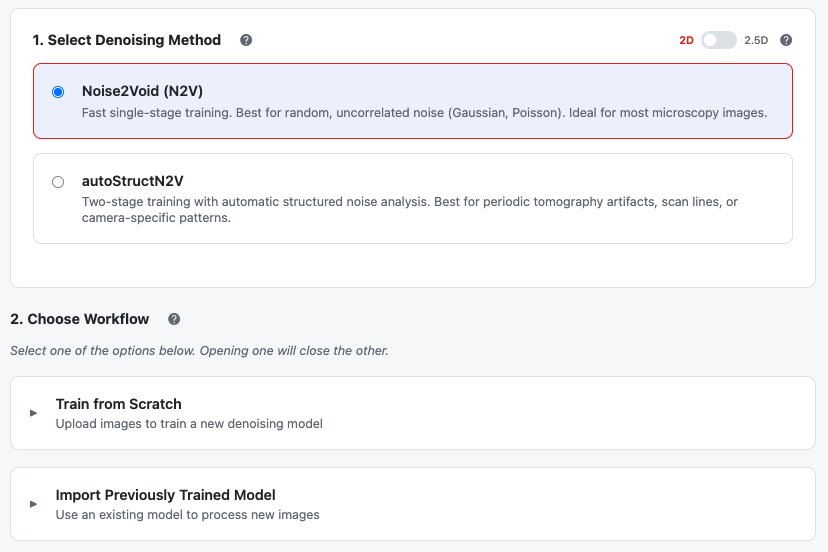 Select your denoising method, then choose a workflow
1. Select Denoising Method
| Option | Description |
|---|---|
| autoStructN2V (auto-routed) | Recommended. Measures your noise first (seconds), then trains exactly one model on the routed branch: StructN2V with a discovered mask, or plain N2V. |
| Noise2Void (N2V) | Forces plain blind-spot training with a single-pixel mask. No noise measurement. |
See Denoising Methods for detailed guidance.
Where did the 2D/2.5D toggle go? New training runs are always 2D. Models trained in 2.5D by the previous version of this module can still be imported for inference — the mode is read from the imported config automatically. See Legacy 2.5D Models.
2. Choose Workflow
After selecting a method, two workflow options appear:
Option A: Train from Scratch
Expand Train from Scratch to upload your data:
- Click the file selector
- Choose a TIFF stack from your workspace or upload a new file
- Wait for validation (green checkmark)
- Click Next: Configure
File requirements: multi-page TIFF, 8-bit or 16-bit grayscale (float data is accepted with a warning and normalized), at least 64×64 pixels per slice, at least 10 slices. A banner at the top of the step reports whether a GPU was detected; without one, training falls back to CPU (roughly 10–50× slower). See Input Data.
For autoStructN2V: your images should contain some background (resin, embedding medium, or empty areas) — that is where the noise is measured.
Option B: Import Previously Trained Model
Expand Import Previously Trained Model to use an existing model:
| File | Description |
|---|---|
| Config (.json) | Training configuration. See Config File |
| Model (.pth) | Trained model weights. See Model File |
Current autoStructN2V trainings produce a single model file (whichever branch the router selected), saved with its mask and route decision. Legacy two-stage models from the previous module version come as a Stage 1 + Stage 2 pair, and both files are needed; legacy 2.5D pairs are also supported.
Note: When importing a model, Steps 2 and 3 are skipped. Proceed directly to Step 4 (Inference).
Step 2: Configure Training
This step is only shown for the Train from Scratch workflow.
Presets
Start with a preset. All three carry the same validated recipe and differ only in compute budget:
| Preset | Description | Epochs (N2V / StructN2V branch) |
|---|---|---|
| Fast | Quick preview: fewer epochs and fewer sampled patches | 50 / 50 |
| Balanced | The publication training budget. Recommended. | 200 / 100 |
| High Quality | Extended budget: more epochs, denser patch sampling | 400 / 200 |
Parameter Groups
Each recipe form has two groups:
- Training Budget — epochs, patches per image, batch size, early stopping. These are the knobs the presets change.
- Advanced Options (collapsed by default) — patch size, learning rate, mask percentage, data augmentation. The network architecture is fixed to the published recipe and is no longer exposed.
N2V Configuration (Single Column)
For N2V, you'll see a single configuration form:
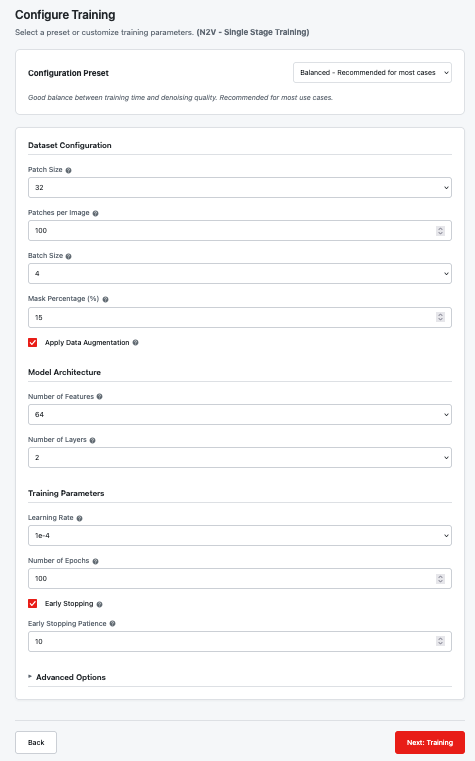 N2V configuration with Training Budget and Advanced Options
autoStructN2V Configuration (Dual Column)
For autoStructN2V, two recipe columns appear side by side: the N2V branch and the StructN2V branch. The noise measurement routes each run to exactly one branch and only that branch trains — but you configure both here so either outcome is ready.
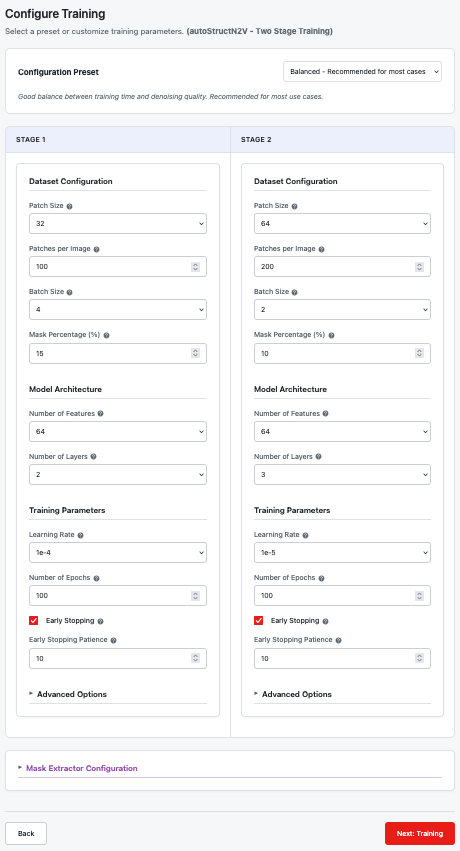 autoStructN2V configuration: N2V branch (left), StructN2V branch (right)
Branch Defaults
| Parameter | N2V branch | StructN2V branch | Why they differ |
|---|---|---|---|
| Patch Size | 64 | 128 | The structural mask needs more spatial context |
| Batch Size | 128 | 24 | Larger patches need smaller batches |
| Mask Percentage | 1.5% | 15% | Each StructN2V site also blanks its correlated neighbours |
| Learning Rate | 0.001 | 0.001 | Same validated value |
| Data Augmentation | On | Off | Flips/rotations would break the mask's alignment with the directional noise |
Parameter details: Patch Size, Patches per Image, Batch Size, Mask Percentage, Learning Rate, Epochs, Early Stopping, Augmentation.
Noise Measurement (autoStructN2V only)
Below the branch columns, the Noise Measurement section controls how the noise is measured and the mask discovered:
| Parameter | Default | Description | Help Article |
|---|---|---|---|
| Background Side | (required) | Which intensity side of your images is background: light, dark, or off | Background Side |
| Correlation Floor | 0.05 | Effect-size floor: minimum |rho| a pixel needs to stay in the mask | Correlation Floor |
| Significance Threshold (|z|) | 8 | Statistical certainty a feature needs to enter the mask | Spine Threshold |
| Max Mask Pixels | unset | Optional hard cap on mask size | Max Mask Pixels |
Background Side is the one required choice. Everything else has validated defaults, and you can adjust all of these again while reviewing the discovered mask — regenerating only takes seconds.
Click Next: Training when configuration is complete.
Step 3: Training
This step is only shown for the Train from Scratch workflow.
N2V Training
For N2V, click Start Denoising to begin training:
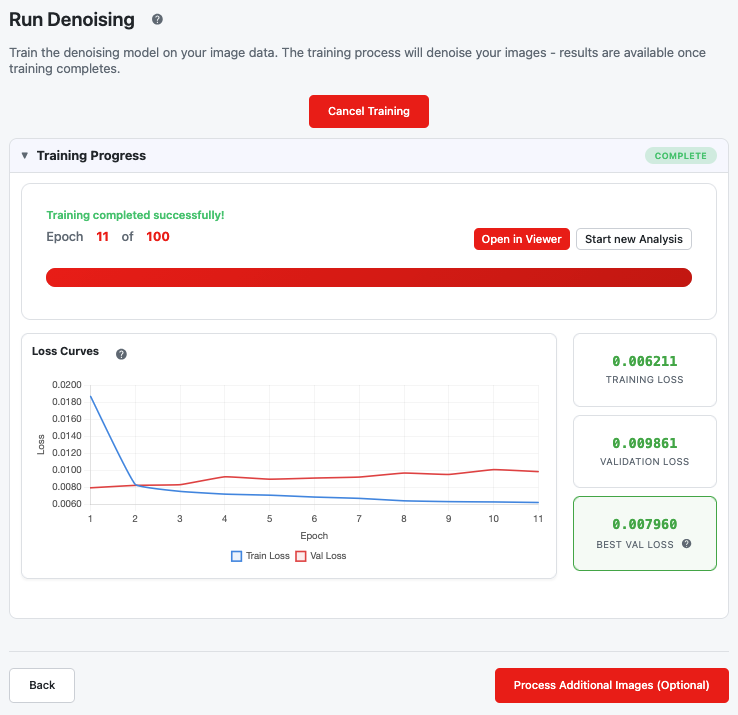 N2V training progress
During Training:
- Progress bar shows current epoch
- Loss chart displays training loss (red) and validation loss (teal) — see Loss Curves
- Metrics cards show current and best validation loss
Training Completion:
- Status changes to "Complete"
- Open in Viewer and Start new Analysis buttons appear
- You can proceed to Step 4 to denoise additional images
Tip: You don't need to watch the entire training. If you leave and return while a run is in progress, a resume dialog offers to reconnect. Only one denoising training can run at a time across the whole workspace.
autoStructN2V: Measure → Review → Train
autoStructN2V runs in three phases. See autoStructN2V Training.
Phase 1: Noise Measurement and Routing (seconds)
Right after you press Start Denoising, background regions are selected from your raw stack and the noise autocorrelation (ACF) is measured. The router then decides which branch to train. No GPU time is spent in this phase.
Phase 2: Mask and Route Review
The run pauses and shows the decision before any training:
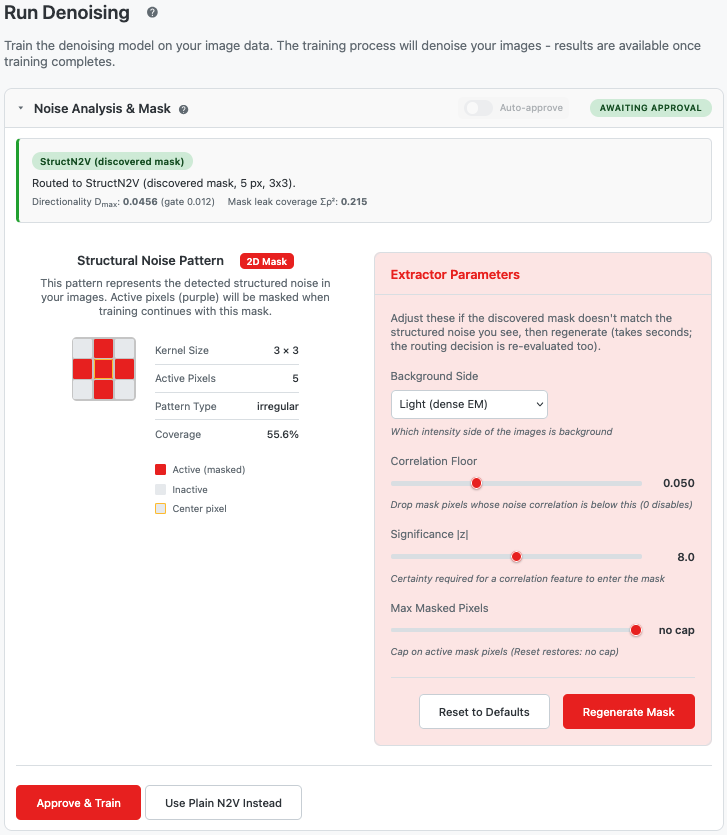 The approval pause: route decision card (top) and discovered mask with extractor parameters (bottom)
The decision card shows the chosen branch, the reason, the Dmax statistic against its threshold (0.012), and — for the StructN2V route — the mask leak coverage Σρ² (the fraction of the center pixel's noise variance the mask covers). See Routing Decision.
The mask review panel shows the discovered spine mask as a pixel grid with statistics (kernel size, active pixels, pattern type, coverage) and a parameter panel with Background Side, Correlation Floor, Significance Threshold (|z|), and Max Mask Pixels, plus Reset to Defaults and Regenerate Mask.
Your options:
| Action | Effect |
|---|---|
| Approve & Train | Train the routed branch with the mask as shown (reads Continue with N2V when the route is plain N2V) |
| Adjust & Regenerate | Change extractor parameters and recompute mask + route — takes seconds |
| Use Plain N2V Instead | Override the router and train with the 1×1 center mask (hidden when the route is already N2V) |
If the mask comes back with very few active pixels, a "Low Structural Noise Detected" warning appears with a shortcut to continue with plain N2V.
Auto-approve: a toggle lets training continue without the pause, for hands-off runs. It can only be set before the analysis runs — once the measurement completes, you review manually.
Phase 3: Single Training and Denoising
Exactly one model trains with the approved mask, then your full stack is denoised. There are no separate stages anymore — total time is comparable to a plain N2V run (the old two-stage flow took roughly twice as long).
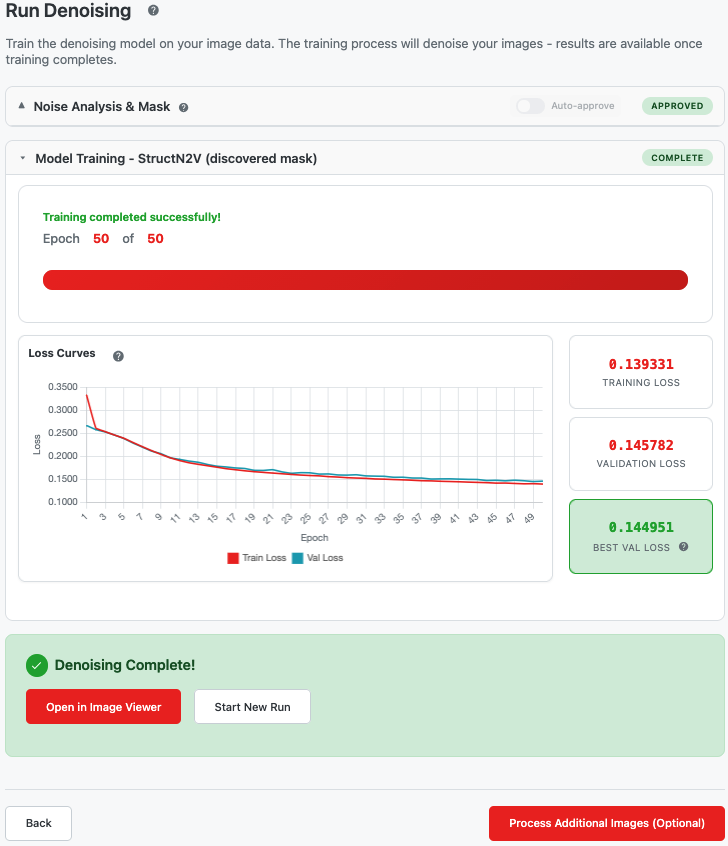 The routed branch training after mask approval
Step 4: Process Additional Data (Optional)
Apply your trained model to denoise additional images without retraining. If your only goal was to denoise the images you uploaded in Step 1, you're done — those were denoised during training.
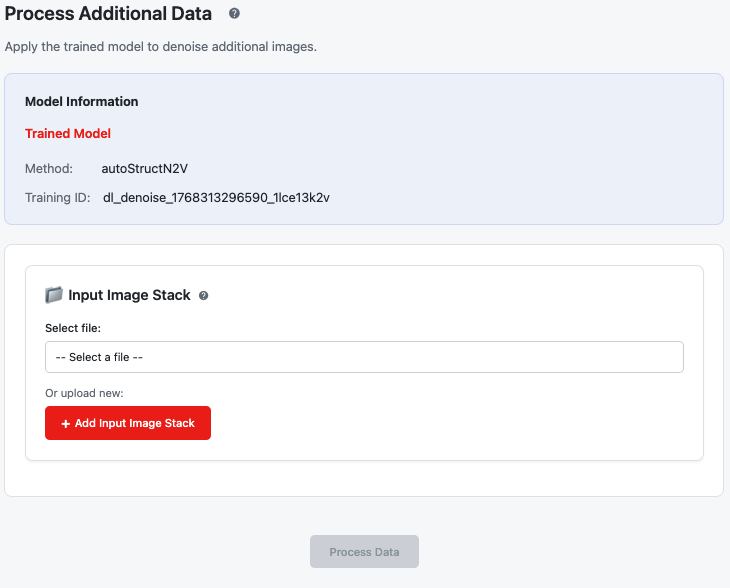 Apply the trained model to new data
Model Information
A summary card shows the model that will be applied: its source (Trained Model or Imported Model), the method (N2V or autoStructN2V), and the training ID or imported model details.
Process New Images
- Click the file selector to choose additional data (validated the same way as training input)
- Click Process Data — the model denoises without training
- When complete, click Open in Image Viewer or Start New Run
There is no separate download button; results are workspace files you open in the Image Viewer.
For best results, use images from the same acquisition conditions as the training data. See Inference Data and Inference Overview.
Output Files
The module saves files to your workspace:
| Output | Location | Description |
|---|---|---|
| Denoised images | results/denoising/ | Denoised TIFF stack |
| Trained model | models/denoising/ | Model weights (.pth) |
| Configuration | models/denoising/ | Training config (.json) |
| Mask & route decision (autoStructN2V) | models/denoising/ | The discovered mask and the routing record |
Nothing is downloaded during training — all files land in your workspace and appear in the File Browser and file selectors.
Troubleshooting
| Issue | Possible Cause | Solution |
|---|---|---|
| Router picked plain N2V but I expected structure | Noise has no usable directional correlation (Dmax below 0.012) | This is an informative result, not an error — plain N2V is the right training for this data |
| Mask looks wrong or misses the visible pattern | Wrong Background Side | Check Background Side first, then Regenerate (seconds) |
| Mask misses a visible noise direction | Thresholds too strict | Lower the Correlation Floor or the Significance Threshold, Regenerate |
| Mask contains scattered pixels with no visible pattern | Threshold too sensitive | Raise the Significance Threshold (|z|), Regenerate |
| "Low Structural Noise Detected" warning | Little directional structure found | Use the shortcut to continue with plain N2V |
| Artifacts remain after forced N2V | Structured noise present | Rerun with autoStructN2V |
| Training very slow | Large images, many epochs, or CPU fallback | Use the Fast preset, check the GPU banner in Step 1 |
| Out of memory | Batch size too large | Reduce batch size (StructN2V branch first — it uses larger patches) |
| Loss curve unstable | Learning rate too high | Lower the learning rate (e.g. to 1e-4) |
| Can't change auto-approve during the run | Toggle locks once analysis completes | Set auto-approve before starting; otherwise review manually |
Method Details: N2V
Noise2Void (N2V) is a self-supervised denoising method that works by:
- Blind-spot training: the network learns to predict each pixel's value from its surrounding context, without seeing the pixel itself
- Self-supervision: the noisy image serves as both input and target
- Assumption: noise is pixel-independent (random, uncorrelated)
Strengths: fast single training run, works well for random microscopy noise, simple configuration.
Limitation: when noise is correlated between neighboring pixels (structured noise), the network can "cheat" by copying correlated noise from neighbors instead of removing it.
For more details, see N2V Training.
Method Details: autoStructN2V
autoStructN2V (ASN2V) extends N2V to handle structured noise — by measuring first and training once:
Noise Measurement on the Raw Stack. Background regions are selected automatically from your raw images (your only required input is the Background Side). The noise autocorrelation function (ACF) is measured on detrended background tiles. Takes seconds, before any training.
Routing Decision. A directionality statistic (Dmax) is computed from the ACF. At or above the threshold, the StructN2V branch is chosen with the discovered mask; below it, the plain N2V branch (same blind-spot training, single-pixel mask).
Mask Discovery (StructN2V route). The discovered mask is a spine: one-pixel-wide line summaries of the significant ACF features (positive and negative correlations alike), ray-connected to the center and symmetric under 180° rotation. Two knobs control it: the Correlation Floor (effect size) and the Significance Threshold (certainty).
Your Approval, Then One Training. The mask and route appear seconds after you press Start. Approve, adjust and regenerate, or override to plain N2V — then exactly one model trains and your full stack is denoised.
Strengths: automatic detection of structured noise, no manual mask creation, safe fallback to plain N2V, one training run (comparable cost to N2V).
Limitations: needs some background in the images for the measurement; 2D training only (legacy 2.5D models remain usable for inference).
For more details, see autoStructN2V Explained and the ASN2V paper (Fortune 2026, code at github.com/lucasfortune/asn2v).
Related Help Articles
Module Overview
Step 1: Method & Data Selection
Step 2: Configuration
- Configuration Overview
- Patch Size
- Patches per Image
- Batch Size
- Mask Percentage
- Augmentation
- Learning Rate
- Epochs
- Early Stopping