
Appearance
Mesh Generation Module Guide
The Mesh Generation module converts segmented image stacks into 3D surface meshes using the Marching Cubes algorithm. These meshes can be visualized interactively, exported for 3D modeling software, or prepared for 3D printing.
For a conceptual overview, see Mesh Generation.
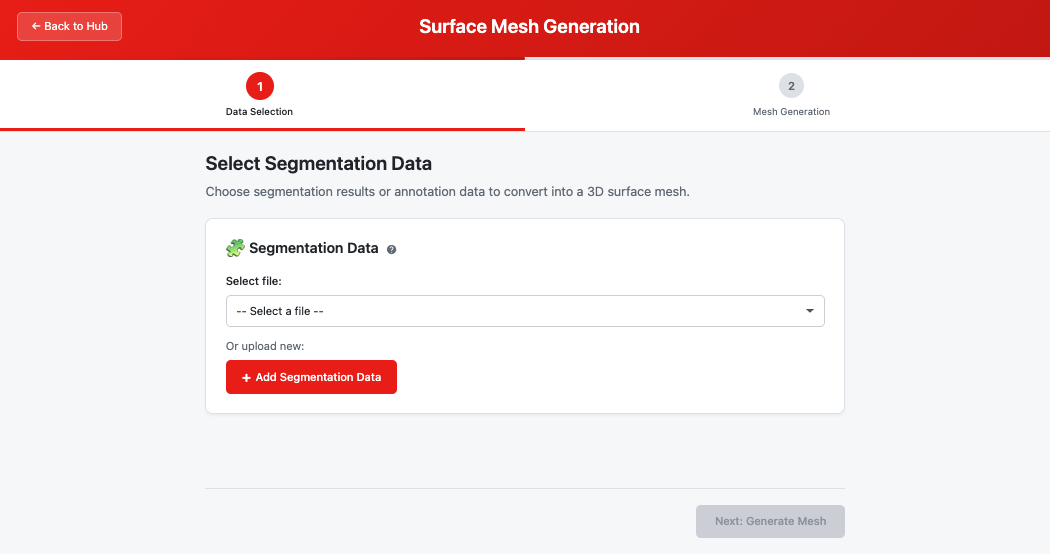 The Mesh Generation module landing page showing step navigation and file selector
Prerequisites
Before using this module, ensure you have:
- A segmented TIFF stack (from Segmentation inference or the Annotation tool)
- The segmentation must contain at least one labeled class (non-background pixels)
Quick Start
- Launch module — Click "Mesh Generation" from the workspace hub
- Select segmentation — Choose a segmentation result or annotation file
- Configure — Choose which class(es) to mesh and set the Z voxel scale
- Generate — Click "Generate Mesh" and wait for processing
- Use results — Open in 3D Visualization or download the JSON/OBJ files
Other formats: the module writes JSON and OBJ. For STL, PLY, or glTF (GLB), right-click the OBJ in the File Browser and use Convert to…
Step-by-Step Guide
Step 1: Data Selection
Select the segmentation data to convert into a 3D mesh.
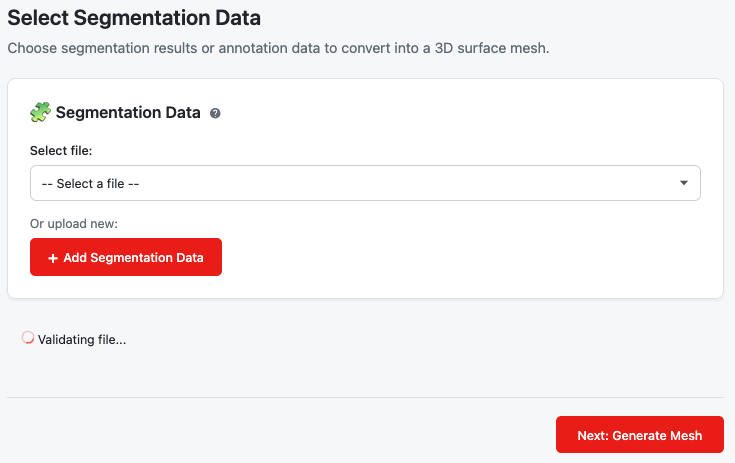 Step 1 data selection with segmentation file validation
Input Options
| Source | Description | When to Use |
|---|---|---|
| Recent Results | Segmentation outputs from U-Net inference | After running segmentation inference |
| Annotation Files | Masks from the Annotation Tool | For manually created segmentations |
| Uploaded Files | Any labeled TIFF stack | For external segmentation data |
File Requirements
- Format: Multi-page TIFF (.tif or .tiff)
- Pixel Values: Integer class labels (0 = background, non-zero = object classes)
- Data Type: Any integer type — uint8, uint16, uint32, int8, int16, or int32. The data is used as-is; no bit-depth conversion is applied
Validation
The module validates your file to ensure it's a proper segmentation:
| Check | What It Means |
|---|---|
| Class Detection | File must contain at least one non-background class |
| Value Range | Rejects files with too many unique values (likely raw images) |
| Data Type | Must be integer type, not floating point |
Note: Invalid uploaded files are automatically removed from your workspace to keep it clean.
For more details, see Segmentation Data.
Click "Next: Generate Mesh" to proceed to Step 2.
Step 2: Mesh Generation
Configure output options and generate your mesh.
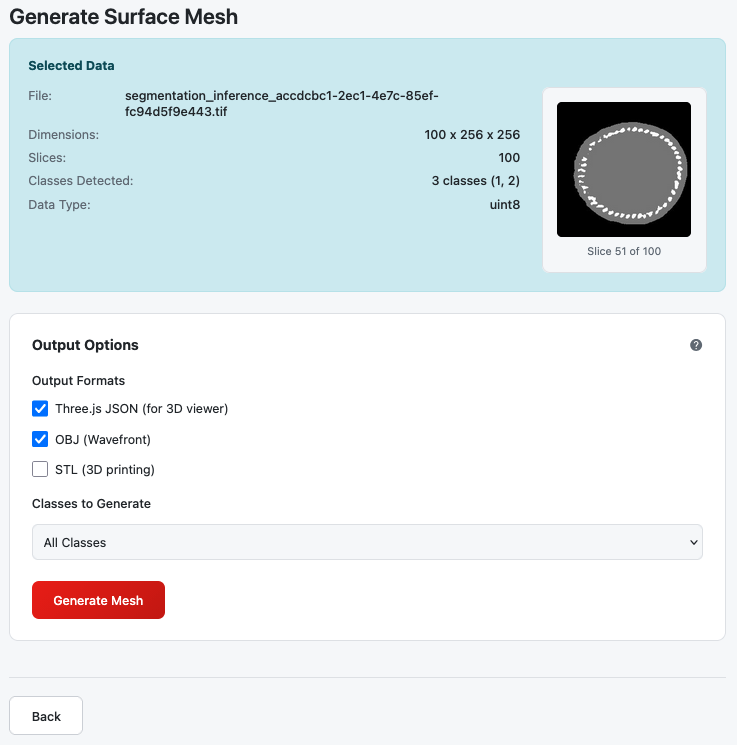 Step 2 with data summary, format selection, and class options
Data Summary
Before generating, you'll see a summary of your selected file:
| Information | Example |
|---|---|
| Filename | inference_result.tif |
| Dimensions | 64 × 512 × 512 (slices × height × width) |
| Detected Classes | Class 1, Class 2 |
| Data Type | uint8 |
| Preview | Thumbnail of middle slice |
Output Files
Every run writes two files — no format selection needed:
| Format | Description | Use Case |
|---|---|---|
| JSON | Slice-based format for the built-in 3D viewer | Interactive visualization in browser (enables the per-class slice-range controls) |
| OBJ (Wavefront) | Industry-standard 3D geometry | Blender, Maya, 3ds Max, etc. |
Need STL, PLY, or glTF? Generate the mesh, then right-click the OBJ file in the File Browser and use Convert to… — STL for 3D printing, PLY, or glTF (GLB).
Class Selection
Choose which classes to include in the mesh:
- All Classes (default) — Generates a separate surface for every detected class
- Single Class — Pick one class value to generate on its own
Z Voxel Scale
Controls the voxel aspect ratio along z relative to the in-plane x/y pixels (range 0.05–20, step 0.1):
| Value | Effect |
|---|---|
| 1 (default) | Cubic voxels (1 : 1 : 1) |
| > 1 | Stretches along z — e.g. 2 for a z-step twice the in-plane pixel size |
| < 1 | Compresses along z for finely-sampled stacks |
Use this when your acquisition is anisotropic so the mesh keeps true physical proportions. Compute it as z-step / in-plane pixel size from your acquisition metadata. The scale is baked into both the OBJ and the JSON (and carries into STL/PLY/glTF conversions).
For more details, see Z Voxel Scale and Output Options.
Click "Generate Mesh" to start processing.
Processing
During mesh generation, you'll see real-time progress updates.
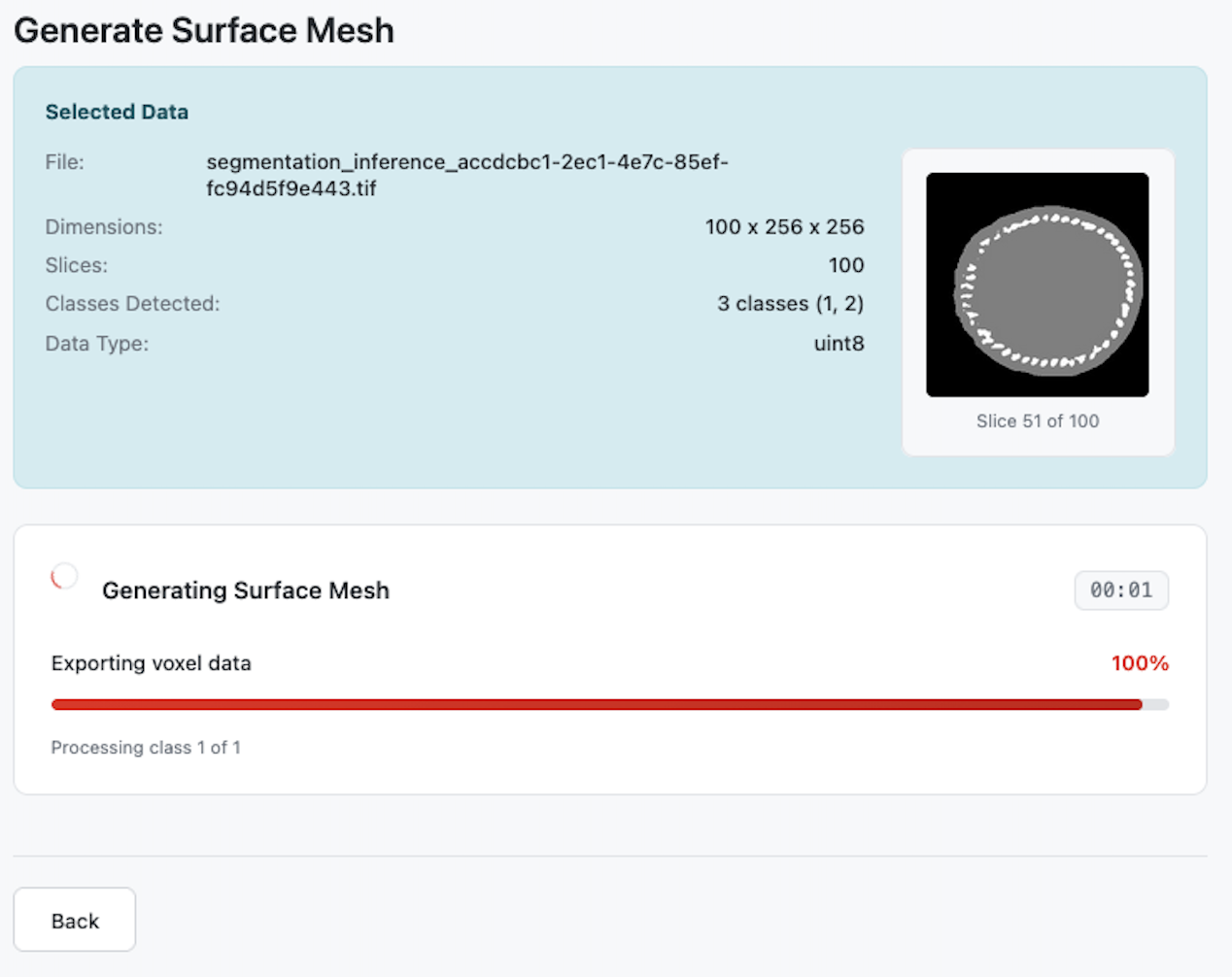 Mesh generation progress with status and elapsed time
Progress Indicators
| Element | Description |
|---|---|
| Status Text | Current operation (e.g., "Processing class 1 of 3") |
| Progress Bar | Visual percentage complete |
| Percentage | Numeric progress (0-100%) |
| Elapsed Time | How long generation has been running |
Note: Generation time depends on data size and number of classes. Large volumes may take several minutes.
Results
After generation completes, you'll see the results summary.
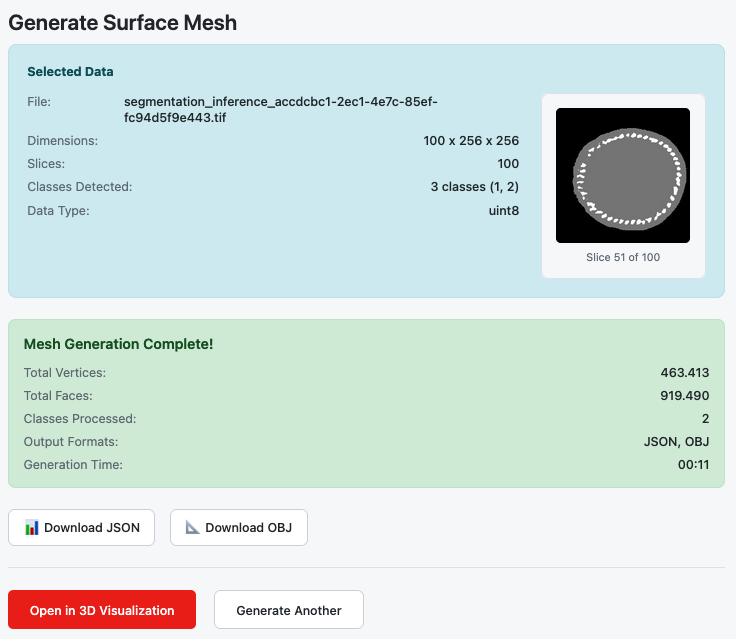 Results section with mesh statistics and download options
Statistics Displayed
| Metric | Description |
|---|---|
| Total Vertices | Number of 3D points in the mesh |
| Total Faces | Number of triangular surfaces |
| Classes Processed | How many classes were meshed |
| Generation Time | Total processing duration (and the Z voxel scale, when not 1) |
Download Options
Download buttons are offered for the JSON and OBJ files.
Actions
- Open in 3D Visualization — Launch the interactive 3D viewer with your mesh
- Start New Run — Return to Step 1 to create another mesh
Tip: If you navigate away while a generation is running, returning to the module resumes it — an in-progress job re-attaches to its progress bar, and a job that finished while you were away shows its results.
Output Files
| File | Format | Description | Location |
|---|---|---|---|
| Mesh JSON | VoxelSlices | Slice-based mesh for the built-in 3D viewer | results/meshes/ |
| Mesh OBJ | Wavefront | 3D geometry for external software | results/meshes/ |
| Metadata | JSON | Generation statistics | results/meshes/ |
STL, PLY, and glTF (GLB) are produced via the File Browser's Convert to… on the OBJ file.
Troubleshooting
| Issue | Cause | Solution |
|---|---|---|
| "No object classes found" | File contains only background (0 values) | Use a file with actual segmentation labels |
| "Too many unique values" | File appears to be raw image data | Select a segmentation output, not raw images |
| Generation takes very long | Large volume or many classes | Normal for large data; wait for completion |
| Can't click Generate | Z voxel scale out of range | Use a value between 0.05 and 20 |
| File validation failed | Uploaded file is not a valid segmentation | Ensure file is a labeled TIFF with integer values |
Related Help Articles
Module Overview:
- Mesh Generation — Module introduction
Step-by-Step:
- Segmentation Data — Input requirements and validation
- Output Options — Class selection and outputs
- Z Voxel Scale — Correct proportions for anisotropic stacks